Bank statement workflows
How to Convert Bank Statements to Excel and Verify Results
Learn how to convert bank statement to Excel data, check missing rows and amount signs, and verify results with balance formulas and a practical checklist.
By The File Workshop product team · Reviewed 2026-10-26 · 7 minute read
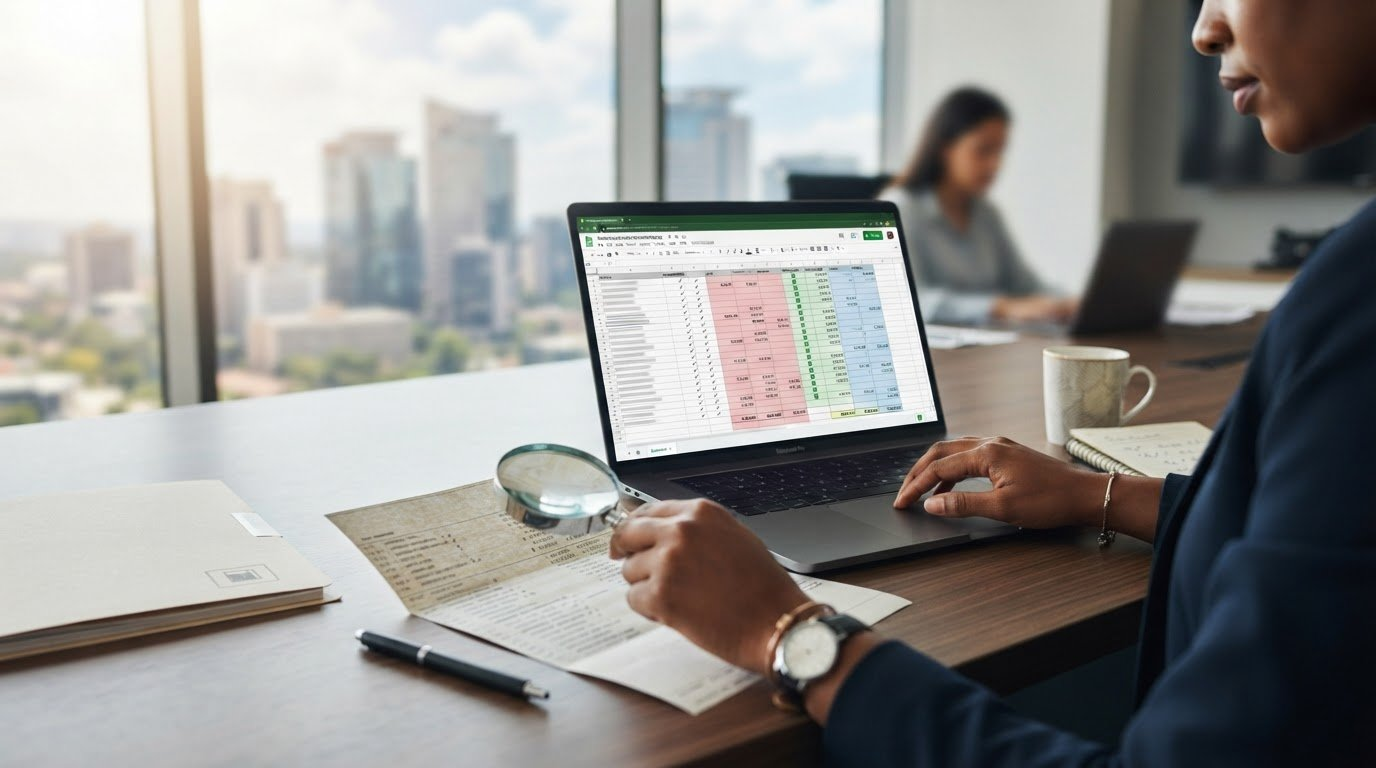
How to convert a bank statement to Excel
To convert bank statement to Excel data you can trust, extract the transactions into a spreadsheet, compare every transaction-bearing page with the original PDF, and reconcile the amounts before using the file. A successful download is only the start: the result must preserve dates, descriptions, money movements and balances.
This guide takes you from source selection to a checked workbook, including a worked balance example and Excel formulas. Keep the bank-issued statement open throughout the review and retain an untouched copy of the exported data.
1. Prepare the original statement
Download the original PDF from your bank where possible. Confirm the account, currency, statement period and page count. Avoid combining different accounts or currencies in one reconciliation. If your bank also offers a transaction spreadsheet, check that its period and coverage match the statement before using it.
Try selecting a transaction description in the PDF. Selectable text often allows direct extraction; an image-only scan needs optical character recognition (OCR). For scans, ensure dates and decimal points are readable and that no columns are cropped. OCR can confuse characters such as 0 and O, so inspect its output carefully.
Only upload statements you are authorised to process. Review the service’s privacy and retention information before uploading sensitive account data.
2. Extract transactions and open the workbook
Open The File Workshop’s bank statement converter using the link beside this article, upload a supported statement and review the extracted transactions. Resolve any reported exceptions before exporting to Excel. If a layout is unsupported or a page is unreadable, obtain a clearer source or use a suitable alternative workflow instead of filling gaps with guesses.
In Excel, aim for one transaction per row, with columns for date, description and amount, or separate debit and credit columns. Retain running balances and page references when available. Opening balances, carried-forward figures, page headers and closing totals should not be counted as transactions.
Keep the source order until balance checks are complete. Sorting same-day transactions can change the sequence needed to verify running balances.
3. Check coverage, dates and descriptions
Compare each transaction-bearing page with the exported rows. Count transactions on each page, check the first and last entry, and look closely at page breaks. A missing page or duplicated block may be hard to notice in an otherwise tidy spreadsheet.
Confirm whether a date such as 04/05 means 4 May or 5 April from the statement’s context. Preserve the distinction between posting date and value date. Check that Excel recognises dates as dates and amounts as numbers; formatting a text value as currency does not necessarily convert it into a number.
Read multi-line descriptions against the PDF. Payment references and beneficiary names may continue on another line. Preserve account references as text when leading zeros matter.
Review checklist
- Check every transaction-bearing page
- Confirm the date convention and year
- Keep wrapped descriptions attached to the correct row
4. Verify debit and credit signs
For a deposit account, choose a consistent convention: money received is positive and money paid out is negative. Check a known deposit, purchase, fee and refund against the statement. Separate debit and credit columns, parentheses and Dr or Cr markers can all indicate how an amount should be interpreted.
Do not automatically apply the same balance formula to credit cards or loan statements. Those may express an amount owed rather than money held. Establish how the source represents increases and decreases before testing its balance.
5. Reconcile balances with a worked Excel example
For a deposit account using positive receipts and negative payments, opening balance + total signed transactions = closing balance. For example, an opening balance of R5,000.00, a receipt of R2,000.00, a payment of R750.00 and a fee of R50.00 should give a closing balance of R6,200.00. These figures are illustrative.
If the opening balance is in H2 and signed transaction amounts occupy C2:C100, use
=$H$2+SUM(C2:C100)to calculate the closing balance. Replace row 100 with your actual final transaction row and exclude any totals. If the statement’s closing balance is in H3,
=ROUND($H$2+SUM(C2:C100)-$H$3,2)should return zero for a currency with two decimal places.
To check each running balance, enter
=$H$2+SUM($C$2:C2)in a new column on row 2 and fill down. Compare those calculated balances with the statement in the same transaction order. If they diverge, investigate the first differing row and the rows immediately before it.
A matching closing balance alone is not proof of accuracy. Missing a R100 receipt and a R100 payment leaves the net movement unchanged. Compare transaction counts and separate receipt and payment totals as well.
6. Resolve differences and save the reviewed file
When a balance does not match, look for missing fees, repeated page-break rows, reversed signs, decimal errors and amounts stored as text. Check the original statement before changing anything. Do not insert a balancing transaction merely to force agreement.
Two transactions with the same date and amount can both be legitimate. Compare their descriptions, references and source positions before removing either. Record corrections in a separate review copy so the original extraction remains available.
Once all exceptions are resolved, save the approved workbook with its account identifier and statement period. If importing into accounting software, check the required columns and date format, then test a small non-overlapping range before importing the full period.
Review checklist
- Reconcile page coverage, counts and totals
- Resolve differences against the original PDF
- Save the reviewed workbook separately from the raw export
Common questions about bank statement conversion
Can I convert a scanned bank statement to Excel? A scan needs OCR before its transactions can be extracted. Results depend on scan quality and layout support. Review every uncertain digit and check balances before relying on the workbook.
Why do the totals match when some rows are wrong? Errors can cancel each other out. Matching net movement cannot confirm individual dates, descriptions or transaction completeness; use page-by-page checks and separate debit and credit totals too.
Should I use XLSX or CSV? XLSX is useful for a review workbook with formulas, formatting and multiple sheets. CSV is a plain table that can suit an import workflow, but it does not preserve workbook formatting or multiple sheets. Use the format required by the receiving system after verification.